
Cómo crear una aplicación móvil multiplataforma con React Native y Expo
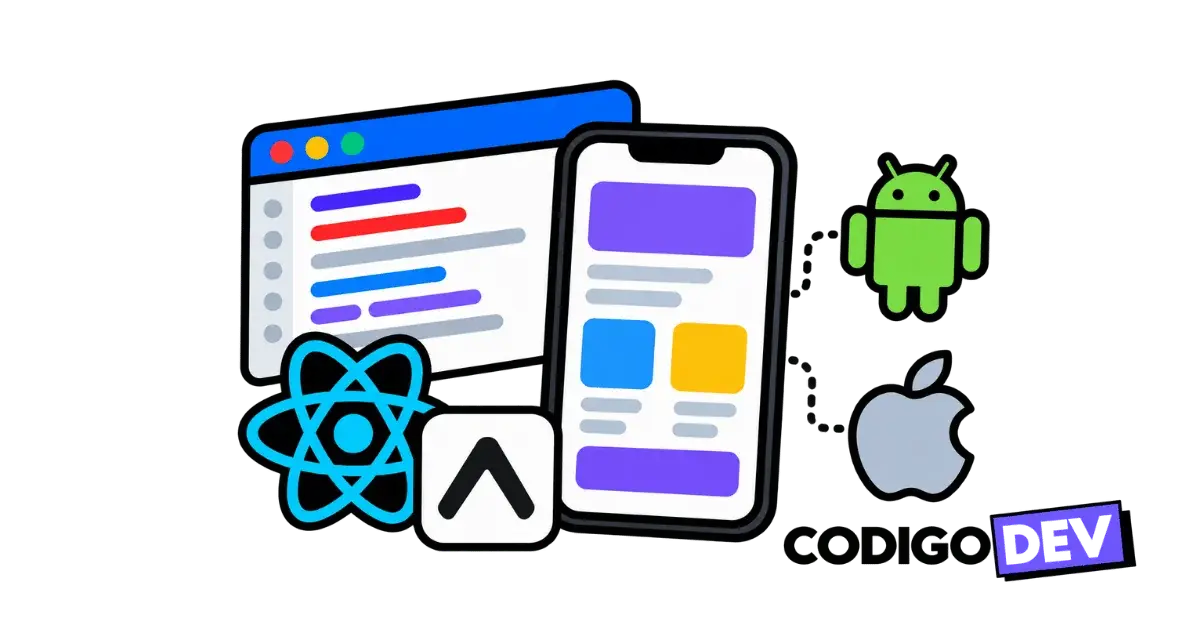
Aprende paso a paso a crear una aplicación móvil multiplataforma para Android e iOS utilizando React Native, Expo y TypeScript. Desde la configuración hasta buenas prácticas.
Qué conseguirás
Al finalizar, tendrás una aplicación de gestión de tareas funcional en tu dispositivo, con navegación, persistencia de datos y lista para compilar.
groups Público objetivo
Desarrolladores web o principiantes en desarrollo móvil que desean aprender a crear aplicaciones nativas utilizando tecnologías web.
checklist Antes de empezar / Requisitos previos
1. Introducción
React Native es un framework de código abierto creado por Meta que permite construir aplicaciones móviles nativas utilizando JavaScript, TypeScript y React. A diferencia de una aplicación basada únicamente en vistas web, React Native renderiza componentes nativos y ofrece una experiencia fluida.
Expo es un ecosistema de herramientas construido alrededor de React Native que simplifica el desarrollo, la ejecución, las pruebas y la compilación. En esta guía construirás TaskApp, una aplicación multiplataforma de gestión de tareas para Android e iOS.
2. Qué construiremos
Crear tareas.
Ver tareas pendientes y completadas.
Marcar o desmarcar tareas.
Eliminar tareas con confirmación.
Filtrar todas, pendientes y completadas.
Guardar datos localmente.
Navegar entre pantallas con Expo Router.
Ejecutar la aplicación en Android e iOS.
3. Requisitos previos
Node.js LTS.
npm, pnpm o yarn.
Git.
Visual Studio Code u otro editor.
Expo Go instalado desde Google Play o App Store.
Conocimientos básicos de JavaScript, TypeScript y React.
Computadora y dispositivo conectados a la misma red Wi-Fi.
4. Crear el proyecto Expo
Genera un proyecto moderno con TypeScript y Expo Router:
npx create-expo-app@latest TaskApp
cd TaskApp
npx expo install @react-native-async-storage/async-storage
npx expo start
Escanea el código QR desde Expo Go. También puedes pulsar a para Android, i para iOS o w para abrir el navegador cuando el entorno lo permita.
5. Entender la estructura inicial
app/
├── _layout.tsx
├── index.tsx
├── new-task.tsx
└── task/
    └── [id].tsx
components/
├── TaskCard.tsx
├── EmptyState.tsx
├── FilterTabs.tsx
└── LoadingState.tsx
hooks/
└── useTasks.ts
types/
└── task.ts
utils/
└── storage.ts
En Expo Router cada archivo dentro de app representa una ruta. _layout.tsx define el contenedor de navegación y [id].tsx representa una ruta dinámica.
6. Configurar la navegación
// app/_layout.tsx
import { Stack } from 'expo-router';

export default function RootLayout() {
  return (
    <Stack>
      <Stack.Screen name="index" options={{ title: 'Mis Tareas' }} />
      <Stack.Screen name="new-task" options={{ title: 'Nueva Tarea', presentation: 'modal' }} />
      <Stack.Screen name="task/[id]" options={{ title: 'Detalle de Tarea' }} />
    </Stack>
  );
}
router.push añade una pantalla, router.back vuelve a la anterior y router.replace sustituye la pantalla actual.
7. Definir los tipos TypeScript
// types/task.ts
export type Task = {
  id: string;
  title: string;
  description: string;
  completed: boolean;
  createdAt: string;
};

export type FilterType = 'all' | 'active' | 'completed';
Los tipos permiten detectar errores antes de ejecutar la aplicación y documentan la forma de los datos.
8. Crear el almacenamiento local
// utils/storage.ts
import AsyncStorage from '@react-native-async-storage/async-storage';
import type { Task } from '../types/task';

const TASKS_KEY = '@TaskApp_tasks';

export async function saveTasks(tasks: Task[]): Promise<void> {
  await AsyncStorage.setItem(TASKS_KEY, JSON.stringify(tasks));
}

export async function getTasks(): Promise<Task[]> {
  const value = await AsyncStorage.getItem(TASKS_KEY);

  return value ? JSON.parse(value) as Task[] : [];
}
AsyncStorage es adecuado para datos pequeños y configuraciones. Una aplicación con gran volumen de datos o sincronización necesitará una base de datos local o un backend remoto.
9. Crear el hook useTasks
// hooks/useTasks.ts
import { useCallback, useEffect, useState } from 'react';
import type { FilterType, Task } from '../types/task';
import { getTasks, saveTasks } from '../utils/storage';

export function useTasks() {
  const [tasks, setTasks] = useState<Task[]>([]);
  const [loading, setLoading] = useState(true);

  const loadTasks = useCallback(async () => {
    setLoading(true);
    setTasks(await getTasks());
    setLoading(false);
  }, []);

  useEffect(() => {
    void loadTasks();
  }, [loadTasks]);

  const addTask = async (title: string, description: string): Promise<void> => {
    const newTask: Task = {
      id: Date.now().toString(), title, description,
      completed: false, createdAt: new Date().toISOString(),
    };
    const updatedTasks = [newTask, ...tasks];
    setTasks(updatedTasks);
    await saveTasks(updatedTasks);
  };

  const toggleTask = async (id: string): Promise<void> => {
    const updatedTasks = tasks.map((task) =>
      task.id === id ? { ...task, completed: !task.completed } : task,
    );
    setTasks(updatedTasks);
    await saveTasks(updatedTasks);
  };

  const deleteTask = async (id: string): Promise<void> => {
    const updatedTasks = tasks.filter((task) => task.id !== id);
    setTasks(updatedTasks);
    await saveTasks(updatedTasks);
  };

  const getTaskById = (id: string): Task | undefined => tasks.find((task) => task.id === id);

  return { tasks, loading, addTask, toggleTask, deleteTask, getTaskById, reloadTasks: loadTasks };
}
10. Crear componentes reutilizables
// components/LoadingState.tsx
import { ActivityIndicator, StyleSheet, View } from 'react-native';

export default function LoadingState() {
  return <View style={styles.container}><ActivityIndicator size="large" /></View>;
}

const styles = StyleSheet.create({
  container: { flex: 1, justifyContent: 'center', alignItems: 'center' },
});
// components/EmptyState.tsx
import { StyleSheet, Text, View } from 'react-native';
export default function EmptyState() {
return <View style={styles.container}><Text style={styles.text}>No tienes tareas. ¡Añade una nueva!</Text></View>;
}
const styles = StyleSheet.create({
container: { padding: 40, alignItems: 'center' },
text: { color: '#666', fontSize: 16, textAlign: 'center' },
});// components/TaskCard.tsx
import { Pressable, StyleSheet, Text, View } from 'react-native';
import type { Task } from '../types/task';
type Props = { task: Task; onPress: () => void; onToggle: () => void };
export default function TaskCard({ task, onPress, onToggle }: Props) {
return (
<Pressable style={styles.card} onPress={onPress}>
<Pressable style={styles.checkboxContainer} onPress={onToggle}>
<View style={[styles.checkbox, task.completed && styles.checkboxActive]} />
</Pressable>
<Text style={[styles.title, task.completed && styles.titleCompleted]}>{task.title}</Text>
</Pressable>
);
}
const styles = StyleSheet.create({
card: { flexDirection: 'row', padding: 16, backgroundColor: '#fff', borderRadius: 8, marginBottom: 12, alignItems: 'center' },
checkboxContainer: { padding: 8 },
checkbox: { width: 24, height: 24, borderRadius: 12, borderWidth: 2, borderColor: '#007AFF' },
checkboxActive: { backgroundColor: '#007AFF' },
title: { flex: 1, marginLeft: 12, fontSize: 16, color: '#333' },
titleCompleted: { textDecorationLine: 'line-through', color: '#999' },
});11. Crear la pantalla principal
FlatList es el componente recomendado para listas móviles porque evita renderizar todos los elementos a la vez.
// app/index.tsx
import { useCallback, useState } from 'react';
import { FlatList, Pressable, StyleSheet, Text, View } from 'react-native';
import { useFocusEffect, useRouter } from 'expo-router';
import EmptyState from '../components/EmptyState';
import LoadingState from '../components/LoadingState';
import TaskCard from '../components/TaskCard';
import { useTasks } from '../hooks/useTasks';
import type { FilterType } from '../types/task';

export default function HomeScreen() {
  const router = useRouter();
  const { tasks, loading, toggleTask, reloadTasks } = useTasks();
  const [filter, setFilter] = useState<FilterType>('all');

  useFocusEffect(useCallback(() => { void reloadTasks(); }, [reloadTasks]));

  const filteredTasks = tasks.filter((task) => filter === 'all'
    || (filter === 'active' && !task.completed)
    || (filter === 'completed' && task.completed));

  if (loading) return <LoadingState />;

  return (
    <View style={styles.container}>
      <View style={styles.filters}>
        {(['all', 'active', 'completed'] as FilterType[]).map((value) => (
          <Pressable key={value} onPress={() => setFilter(value)} style={[styles.filter, filter === value && styles.activeFilter]}>
            <Text style={filter === value ? styles.activeText : styles.text}>{value.toUpperCase()}</Text>
          </Pressable>
        ))}
      </View>
      <FlatList
        data={filteredTasks}
        keyExtractor={(item) => item.id}
        renderItem={({ item }) => <TaskCard task={item} onPress={() => router.push(`/task/${item.id}`)} onToggle={() => void toggleTask(item.id)} />}
        ListEmptyComponent={<EmptyState />}
        contentContainerStyle={styles.list}
      />
      <Pressable style={styles.fab} onPress={() => router.push('/new-task')}><Text style={styles.fabText}>+</Text></Pressable>
    </View>
  );
}

const styles = StyleSheet.create({
  container: { flex: 1, backgroundColor: '#F2F2F7' },
  filters: { flexDirection: 'row', padding: 16, justifyContent: 'space-around' },
  filter: { padding: 8, borderRadius: 20 }, activeFilter: { backgroundColor: '#007AFF' },
  text: { color: '#666', fontWeight: 'bold' }, activeText: { color: '#fff', fontWeight: 'bold' },
  list: { padding: 16, paddingBottom: 80 },
  fab: { position: 'absolute', bottom: 24, right: 24, width: 56, height: 56, borderRadius: 28, backgroundColor: '#007AFF', justifyContent: 'center', alignItems: 'center' },
  fabText: { color: '#fff', fontSize: 24, fontWeight: 'bold' },
});
12. Crear la pantalla de nueva tarea
// app/new-task.tsx
import { useState } from 'react';
import { Alert, KeyboardAvoidingView, Platform, Pressable, StyleSheet, Text, TextInput } from 'react-native';
import { useRouter } from 'expo-router';
import { useTasks } from '../hooks/useTasks';

export default function NewTaskScreen() {
  const router = useRouter();
  const { addTask } = useTasks();
  const [title, setTitle] = useState('');
  const [description, setDescription] = useState('');

  const handleSave = async (): Promise<void> => {
    if (!title.trim()) { Alert.alert('Error', 'El título es obligatorio.'); return; }
    await addTask(title.trim(), description.trim());
    router.back();
  };

  return (
    <KeyboardAvoidingView style={styles.container} behavior={Platform.OS === 'ios' ? 'padding' : 'height'}>
      <TextInput style={styles.input} placeholder="Título de la tarea" value={title} onChangeText={setTitle} autoFocus />
      <TextInput style={[styles.input, styles.textArea]} placeholder="Descripción (opcional)" value={description} onChangeText={setDescription} multiline numberOfLines={4} />
      <Pressable style={styles.button} onPress={() => void handleSave()}><Text style={styles.buttonText}>Guardar tarea</Text></Pressable>
    </KeyboardAvoidingView>
  );
}

const styles = StyleSheet.create({
  container: { flex: 1, padding: 16, backgroundColor: '#fff' },
  input: { borderWidth: 1, borderColor: '#ddd', padding: 12, borderRadius: 8, fontSize: 16, marginBottom: 16 },
  textArea: { height: 100, textAlignVertical: 'top' },
  button: { backgroundColor: '#007AFF', padding: 16, borderRadius: 8, alignItems: 'center' },
  buttonText: { color: '#fff', fontSize: 16, fontWeight: 'bold' },
});
13. Crear la pantalla de detalle
// app/task/[id].tsx
import { useEffect, useState } from 'react';
import { Alert, Pressable, StyleSheet, Text, View } from 'react-native';
import { useLocalSearchParams, useRouter } from 'expo-router';
import LoadingState from '../../components/LoadingState';
import { useTasks } from '../../hooks/useTasks';
import type { Task } from '../../types/task';

export default function TaskDetailScreen() {
  const { id } = useLocalSearchParams<{ id: string }>();
  const router = useRouter();
  const { getTaskById, toggleTask, deleteTask, loading } = useTasks();
  const [task, setTask] = useState<Task | null>(null);

  useEffect(() => {
    if (!loading && id) setTask(getTaskById(id) ?? null);
  }, [id, loading, getTaskById]);

  if (loading) return <LoadingState />;
  if (!task) return <View style={styles.container}><Text>La tarea no existe.</Text></View>;

  const handleDelete = (): void => {
    Alert.alert('Eliminar tarea', '¿Quieres eliminarla?', [
      { text: 'Cancelar', style: 'cancel' },
      { text: 'Eliminar', style: 'destructive', onPress: async () => { await deleteTask(task.id); router.back(); } },
    ]);
  };

  return (
    <View style={styles.container}>
      <Text style={styles.title}>{task.title}</Text>
      <Text>Estado: {task.completed ? 'Completada' : 'Pendiente'}</Text>
      <Text style={styles.description}>{task.description || 'Sin descripción'}</Text>
      <Pressable style={styles.button} onPress={async () => { await toggleTask(task.id); setTask({ ...task, completed: !task.completed }); }}>
        <Text style={styles.buttonText}>{task.completed ? 'Marcar pendiente' : 'Marcar completada'}</Text>
      </Pressable>
      <Pressable style={styles.delete} onPress={handleDelete}><Text style={styles.buttonText}>Eliminar</Text></Pressable>
    </View>
  );
}

const styles = StyleSheet.create({
  container: { flex: 1, padding: 16, backgroundColor: '#fff' },
  title: { fontSize: 24, fontWeight: 'bold', marginBottom: 8 },
  description: { fontSize: 16, marginVertical: 32 },
  button: { padding: 16, borderRadius: 8, alignItems: 'center', backgroundColor: '#34C759', marginBottom: 12 },
  delete: { padding: 16, borderRadius: 8, alignItems: 'center', backgroundColor: '#FF3B30' },
  buttonText: { color: '#fff', fontWeight: 'bold' },
});
14. Estilos y experiencia móvil
React Native utiliza StyleSheet.create() en lugar de CSS convencional. Usa áreas táctiles amplias, tipografía legible, colores de estado y una estructura que se adapte a diferentes tamaños.
KeyboardAvoidingView evita que el teclado cubra los campos. Para interfaces personalizadas, utiliza una solución de área segura para dispositivos con notch y barras de navegación.
15. Probar la aplicación
Intenta crear una tarea vacía y comprueba la validación.
Crea una tarea válida y marca el checkbox.
Prueba las pestañas Activas y Completadas.
Entra al detalle y cancela y confirma una eliminación.
Cierra y vuelve a abrir Expo Go para comprobar la persistencia.
Prueba la interfaz en Android e iOS cuando sea posible.
16. Manejar errores frecuentes
Expo Go no conecta
Comprueba que el firewall no bloquee el puerto de Metro y que el ordenador y el dispositivo estén en la misma red.
El teclado tapa los campos
Envuelve el formulario en KeyboardAvoidingView y ajusta su comportamiento según la plataforma.
El parámetro dinámico está vacío
Verifica que id exista antes de buscar la tarea en [id].tsx.
AsyncStorage no guarda
AsyncStorage solo guarda strings: utiliza JSON.stringify al guardar y JSON.parse al leer.
17. Pruebas automatizadas
Para probar componentes React Native puedes utilizar Jest y React Native Testing Library:
npm install -D jest jest-expo @testing-library/react-nativeimport { render } from '@testing-library/react-native';
import EmptyState from '../components/EmptyState';
test('muestra el mensaje cuando no hay tareas', () => {
const { getByText } = render(<EmptyState />);
expect(getByText('No tienes tareas. ¡Añade una nueva!')).toBeTruthy();
});La configuración completa requiere ajustar package.json y Babel según la versión del proyecto.
18. Preparar la aplicación para producción
Configura el nombre, iconos, splash screen e identificadores únicos en app.json:
{
  "expo": {
    "name": "TaskApp",
    "slug": "taskapp",
    "version": "1.0.0",
    "orientation": "portrait",
    "icon": "./assets/icon.png",
    "ios": { "supportsTablet": true, "bundleIdentifier": "com.tuempresa.taskapp" },
    "android": { "package": "com.tuempresa.taskapp" }
  }
}
bundleIdentifier y package deben ser identificadores únicos. Para generar builds instalables puedes utilizar EAS Build:
eas build -p android --profile preview19. Buenas prácticas
Mantén componentes pequeños y con una sola responsabilidad.
Tipa props y datos con TypeScript.
Separa estado, almacenamiento y presentación.
Utiliza
FlatListpara listas grandes.Muestra estados de carga, error y lista vacía.
No subas secretos: cualquier clave incluida en la aplicación compilada puede ser inspeccionada.
Prueba en Android y iOS.
20. Conclusión
Con React Native y Expo construiste TaskApp usando un único código base para Android e iOS. Practicaste navegación, estado, persistencia local, formularios, componentes reutilizables y preparación para producción.
21. Próximos pasos
Puedes ampliar la aplicación con autenticación, una API remota, sincronización en la nube, notificaciones push, temas claro y oscuro, internacionalización y publicación en Google Play y App Store.
Herramientas y su función en este proceso
No es una lista genérica: cada recurso tiene un papel concreto dentro del proceso.

Framework principal para construir la aplicación móvil
React Native
React Native se utiliza para crear la interfaz y la lógica multiplataforma de la aplicación para Android e iOS.
Plataforma y conjunto de herramientas de desarrollo
Expo
Expo simplifica la creación, ejecución, prueba y compilación de la aplicación React Native.